
Most schools in India run on a mix of registers and Excel sheets: one file for students, another for fees, a notebook for transport and a WhatsApp group for everything else. Moving to school management software is not hard, but the order matters. Get it right and the office starts working on real data on the first day. Get it wrong and the old sheets keep living beside the new software for months.
1. Gather what you already have
Before anything is typed, collect the lists the school already keeps:
- The student list, with admission number, class, section, date of birth and gender.
- Parent names and mobile numbers, the father's and the mother's if you have both.
- The class list for the coming year, with the class teacher of each class.
- The fee structure of every class, broken into components such as tuition, books and transport.
- Last year's unpaid dues, and anything already paid this year if you start mid-year.
- The staff list, with each person's mobile number and job.
- The bus list: routes, stops and which child gets on where.
2. Clean the lists once
Software is strict where registers are forgiving. A few checks now save days of corrections later:
- One row per student, with no merged cells and no totals at the bottom.
- Every admission number used once only.
- Mobile numbers written as 10 digits, starting with 6, 7, 8 or 9.
- Class and section written the same way everywhere, such as 5-A or Class 5, section A.
- Dates written one way through the whole file, such as 25/06/2015.
- Names without numbers or notes inside them. Put remarks in their own column.
3. Set up the year before you import
Records hang off the academic year, so the year comes first. Open the academic year with its dates, create the classes and sections, and set each class's fees. Only then bring students in, so each child lands in a class that already exists, with the right fees waiting for them.
4. Bring the data in, in this order
- Students and parents from the student sheet. Brothers and sisters are linked to one family.
- Staff from the staff sheet, so each person gets their own login.
- Bus places, once routes and stops exist, so bus fees follow each child.
- Opening balances for dues carried from last year and fees already paid.
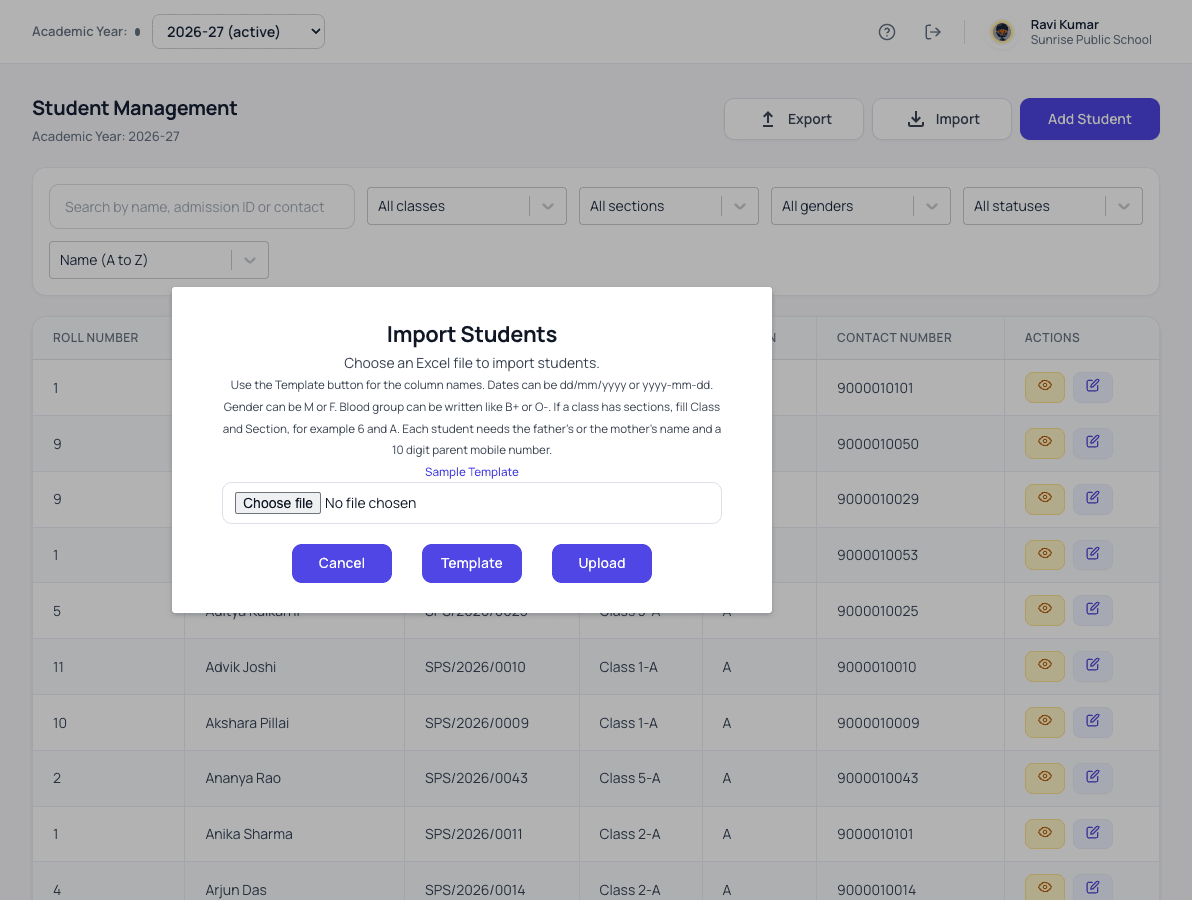
5. Read the import report, fix and repeat
Good school software checks every row before saving and tells you exactly which line is wrong and why. Fix those lines in the sheet and import again. Importing the same list twice should never create the same student twice, so a second attempt is safe.
6. Switch over on a fixed day
Pick a day, such as the first working day of a month, after which fees are collected and attendance is marked only in the new software. Keep the old sheets as read-only records. A clean switch avoids the most common problem: two sets of numbers that never match.
How Patashala360 helps
Patashala360 gives each import its own Excel template, reads dates and class names the way school registers write them, shows mistakes line by line before saving, and keeps a report of every import. On a paid licence, our team does this work for you at your school. See Excel data import, student information and how a school goes live.
Patashala360 is school management software built for schools in India. If you are still comparing, read how to choose the best school management software in India.